

Services

We build
high-quality websites
.

We are experts in creating websites that resonate with and convert

Let's work together!

Get a free consultation with our experts

Why us?

Behind every great website is a
great team
.

We have built 150+ websites for marketers and global brands.

Website

Latest
insights
.

A decade in the industry. 150+ websites built, optimized, and operated. Here we share what we’ve learned.

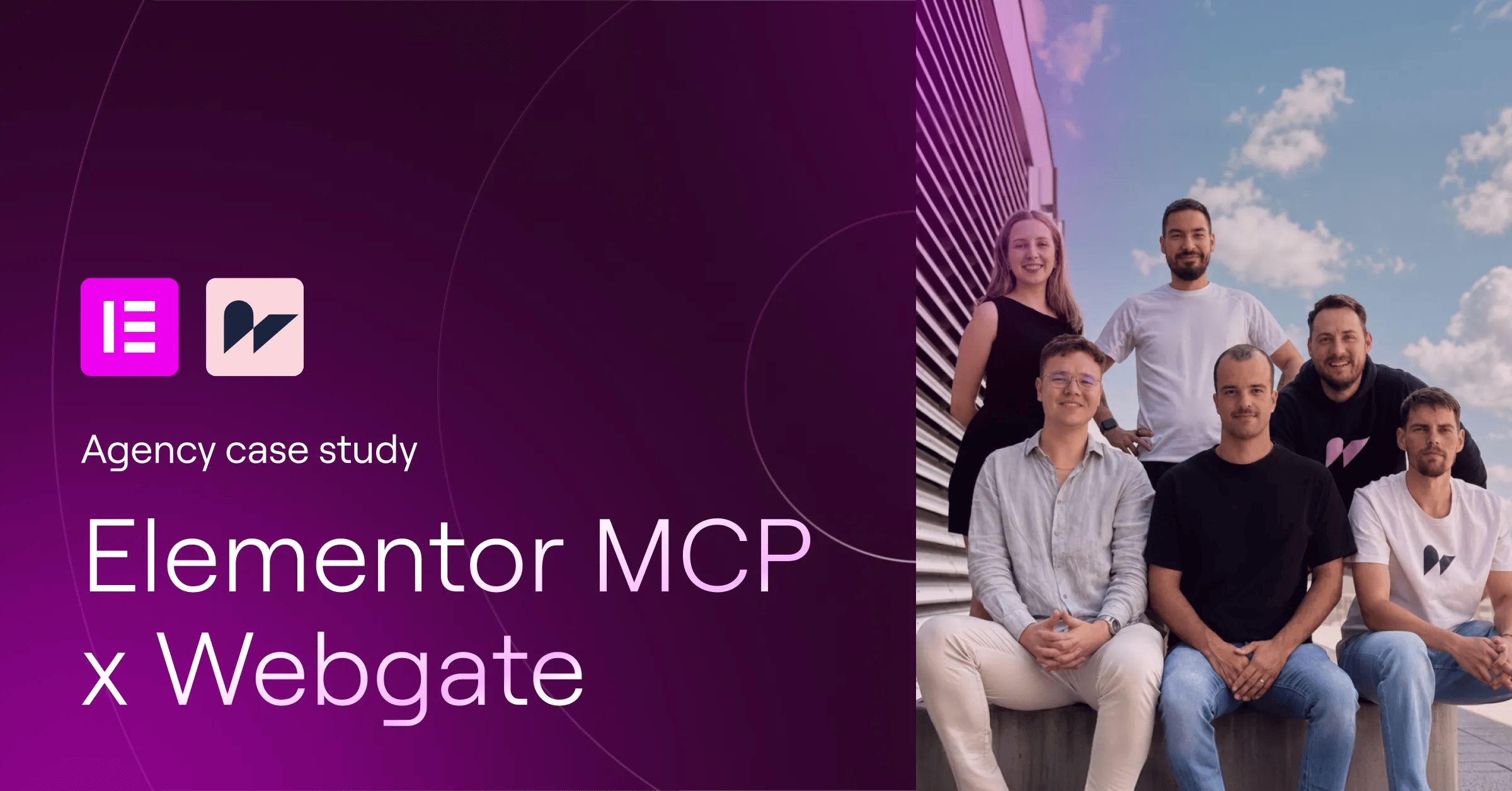
Elementor MCP × Webgate agency case study

Featured on Elementor Blog

Our AI workflow with Elementor MCP

Read the case study ↗

Case Study

How Bloomreach made a 1,200+ page website easier to manage

Read more
Read more
Services

Services

We build
high-quality websites
.

We are experts in creating websites that resonate with and convert

Let's work together!

Get a free consultation with our experts

About us

Why us?

Behind every great website is a
great team
.

We have built 150+ websites for marketers and global brands.

Guide

How to Prevent WordPress from Automatically Scaling Large Images (-scaled)

Table of Contents

Learn how to stop WordPress from automatically resizing large uploads with the ‘-scaled’ suffix. Disable or adjust the image scaling threshold easily.

Sometimes you need to upload a high-resolution image to the WordPress Media Library. Maybe it’s because the image contains text, design details, or you simply need maximum quality. However, by default WordPress automatically down-scales any image larger than 2560px on its longest side.

This means that every time you upload a “too big” image, WordPress creates a resized version capped at 2560px. You can recognize it easily by the filename — WordPress appends -scaled to it. For example:

xyz.jpg → becomes xyz-scaled.jpg

Once an image is scaled down, its quality is reduced — which can make it appear blurred or rasterized on the front-end.

The good news is: WordPress still keeps the original full-size file on your server, so it’s not lost.

If you want to disable this automatic downscaling completely, just add the following snippet to your functions.php:

add_filter( 'big_image_size_threshold', '__return_false' );

Or, if you prefer to adjust the threshold (instead of turning it off), you can specify your own maximum size. For example, to allow uploads up to 4000px before scaling:

add_filter( 'big_image_size_threshold', function( $threshold ) {
    return 4000; // max width or height before WordPress scales
});
Picture of Roman Vlčák

Roman Vlčák

An incorrigible perfectionist passionate about pixel-perfect work, who constantly strives to deliver the highest possible quality. Outside of Webgate, he is a caring husband and father to his young son. In his free time, he likes traveling with his family and doing puzzles.

Senior WordPress Developer • Co-founder

Share this article

Let's work together!

Get a free consultation with our experts

Read
More
.

Codex connected to Elementor MCP and multiple website pages illustrating bulk Elementor updates
Guide

How to Bulk Update Elementor Pages with Codex and MCP

Read more
Read more
Codex and Elementor MCP connected on a pastel gradient background
Guide

How to Organize WordPress Posts and Archives with Codex + Elementor MCP

Read more
Read more
Elementor and WebToffee logos on a pastel gradient background
Guide

How to Revisit Consent Without the Floating Button in the WebToffee GDPR Cookie Consent Plugin

Read more
Read more

Subscribe to our quarterly newsletter and receive latest insights.

Topics: Improving B2B websites, AI tools in web development, UX/UI, website marketing trends etc.

By submitting this form you agree to the processing of your personal data according to our .

Contact

Let's work together!

Get a free consulting call with our experts

Book a call with
Webgate founders

Thank you for your interest!

We will contact you soon.