










You have a website design in Claude. The layout looks right, the typography is clear, and you can click through the prototype. Now you want to build it in WordPress so the team can edit pages, publish content, and manage the website after launch.
To move a Claude design to Elementor, the useful next step is to translate that design into native elements, shared styles, and WordPress content. Elementor MCP gives a connected AI agent access to supported Elementor operations, so it can help carry out that implementation.
We recently used this approach to build a complete website from a Claude prototype. In this guide, I’ll explain the workflow you can reuse: prepare the source, establish the design system, build the page structure, and check what actually works. The implementation examples use Codex connected to Elementor MCP.
What You Need Before You Start
Prepare the approved design, its source files where available, and the original images and fonts. You also need a WordPress development environment, Elementor, and a compatible AI client connected through MCP. Use Elementor Pro when the implementation needs its Theme Builder, dynamic content, or form features.
Check the current Elementor MCP requirements and supported operations. The tools available to your agent depend on the installed versions, enabled features, and account permissions. A widget visible in the editor is not automatically editable through every MCP connection.
If the site already contains content, keep a restorable backup and identify the pages and shared templates that the new build may affect.
1. Prepare the Claude Design as a Build Reference
Give the agent more than a screenshot of the homepage. A screenshot helps with appearance, but the source can explain the layout rules, font choices, image proportions, and responsive behavior behind it.
For a Claude artifact, export or download the available source and assets. The controls differ between artifact types; Claude’s artifact guide explains the available export options. Include the rendered reference as well, so the agent can compare the code with the intended result.
A useful handoff contains:
- The approved version: the reference link and the matching source files.
- Assets: original images, logos, icons, and any licensed font files.
- Page states: desktop and mobile layouts, expanded accordions, menus, and dialogs.
- Content status: final copy, placeholder text, missing files, and unfinished integrations.
Resolve conflicting references before building. If the rendered design uses one font while an older brand document names another, specify which version should be followed. Otherwise, the agent may reproduce an earlier direction accurately.
Inspect the approved Claude design and the supplied source files.
List the pages, shared sections, fonts, colors, spacing rules, and interactions.
Compare the source with the rendered reference at desktop and mobile widths.
Identify conflicting versions, missing assets, and placeholder behavior.
Treat [approved reference] as the design source of truth.
Do not change WordPress yet.
This first inspection should produce a usable build brief. It is also the right time to decide what a form, download button, or search field is expected to do beyond the prototype.
2. Connect the Implementation Agent to Elementor MCP
In WordPress, open Elementor → Elementor MCP, enable access, select your AI client, and follow the generated setup instructions. The connection uses a WordPress application password, so keep the setup details private. Follow Elementor’s connection guide for the current steps.
In this workflow, Claude supplies the design and Codex handles the implementation. Codex’s connection options are covered in the official MCP documentation. A compatible Claude client can also connect to Elementor; using two different AI tools is a workflow choice.
Start with a read-only check. Ask the agent to confirm the website address, inspect the active design system, list the available widgets, and identify existing headers, footers, and templates.
Keep the scope of the connection clear. Elementor layout work, WordPress content setup, custom plugins, and hosting changes are different tasks. If an operation needs a separate WordPress API, admin action, or script, the agent should identify that requirement. Our own implementation combined these methods.
3. Map the Design to WordPress Pages and Templates
A prototype often places several screens inside one HTML application. WordPress needs an explicit structure: actual page URLs, shared navigation, and a place for content that will be added later.
Before asking for every screen to be built, map each part of the design to the structure that will maintain it:
| Part of the design | WordPress / Elementor structure |
|---|---|
| Homepage or a unique landing page | An Elementor page with its own layout |
| Header, navigation, and footer | Shared Theme Builder templates and menus |
| Articles, resources, or other repeated entries | Posts or a suitable custom post type with fields |
| Repeated detail layout | One dynamic single template |
| Listing cards | A loop or archive connected to the relevant content |
| Repeated visual patterns | Shared classes, templates, or supported components |
For example, a resource library should let an editor add a resource in WordPress and have it appear in the listing. Creating a separate hand-built page and card for every resource makes that routine update harder.
Define the content type, fields, categories, and template conditions before populating the library. Our guide to organizing WordPress posts and archives with Codex and Elementor MCP explains the related content and archive decisions.
4. Build the Design System Before the Pages
Extract the values that repeat throughout the prototype: colors, font families and weights, heading sizes, content widths, gutters, section spacing, button styles, and border radii.
Translate those values into Elementor’s supported variables, classes, and defaults. On an existing website, inspect what is already there and reuse it where appropriate. Give new shared styles consistent names so another developer can understand them.
Configure Elementor Site Settings
Before building the pages, open Site Settings from the Elementor menu in the editor’s top bar. I check these settings against the approved design first, so new sections start with the right defaults:
- Colors — Global Colors: define the brand, text, background, and border colors. Give them clear names and apply the shared colors when styling widgets.
- Fonts — Global Fonts: choose the actual font families and weights from the design. Make sure the required font files are available before judging line wrapping or spacing.
- Typography — Theme Style → Typography: set body text, H1–H6 headings, and link styles. Check font size, weight, line height, and letter spacing, including the responsive values.
- Layout — Layout: set the content width, default spacing, and page layout to suit the design. Keep section padding and component spacing consistent through shared styles.
- Breakpoints — Layout → Breakpoints: review the active widths and align them with the prototype’s layout changes. Add another breakpoint only when the design needs it, and test just above and below each transition.
Elementor’s Site Settings guide covers the panel, and its responsive editing guide explains the breakpoint controls.
For V4 Atomic elements, also configure color and font variables under Design System → Variables, and tag typography under Design System → Defaults. These are separate from the legacy global controls. Check which styling system the elements use; Elementor documents the V4 behavior in its Default Styles guide.
Create the design foundation from the approved prototype.
Configure the site typography, layout defaults, and active breakpoints first.
Reuse existing matching styles and list any new variables or classes needed.
Preserve the actual font families, weights, widths, spacing, and button states.
Build a draft reference page with headings, body text, colors, and buttons.
Check it at desktop, tablet, and mobile widths before building the full pages.
Report unavailable fonts or unsupported controls instead of substituting silently.
A small reference page makes mismatches easier to spot. Check the real font, line height, button height, and content width there before repeating them throughout the website.
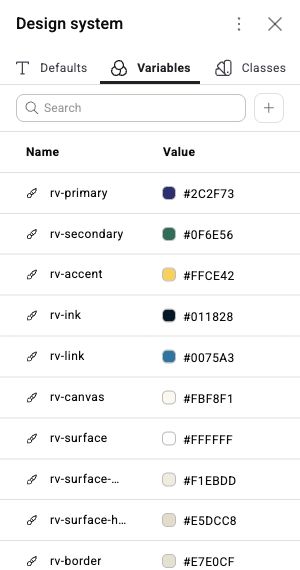
Make sure shared styles reference those variables. A hard-coded CSS value that overrides the variable defeats the purpose of exposing it in the editor.
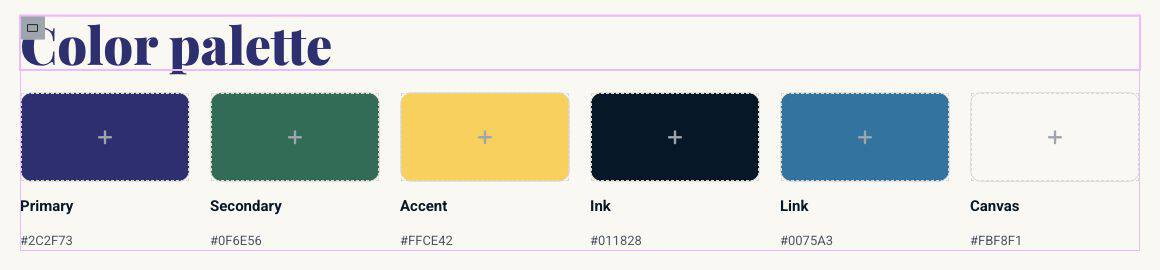
5. Build One Representative Page with Native Elements
Choose a page that exercises the main design patterns: a hero, a text section, a card layout, and a call to action. Build it from native headings, paragraphs, images, buttons, and layout elements that the connection supports.
The original HTML and CSS are useful implementation references. The final content should have clear controls in Elementor, so a colleague can select a heading, replace an image, or change a destination link.
Build [page] from the approved reference using supported native Elementor elements.
Use the established design variables and classes.
Keep headings, paragraphs, images, and buttons individually editable.
Reuse the shared header and footer.
Preserve image proportions and the reference’s responsive layout rules.
Keep the page as a draft and report any custom CSS or JavaScript it requires.
Do not place the complete website inside one HTML widget.
Open the result in Elementor and inspect its structure. Confirm that the heading text and semantic tag are editable, the images use the Media Library, and the buttons expose their links.
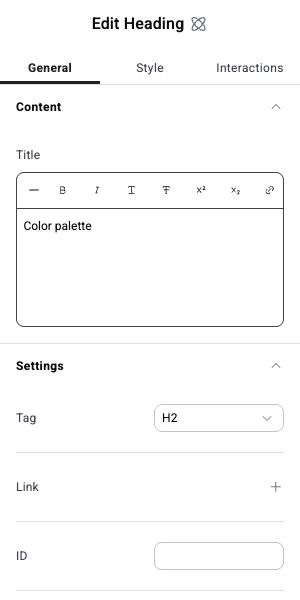
Once this page matches the reference, use it to build the remaining layouts. Keep shared changes in shared styles or templates. For changes that need to be applied across individual pages, use the inspection and batching approach in our bulk Elementor updates guide.
6. Connect the Prototype’s Interactions to Real Functionality
A prototype can display “Thank you” after a button click without storing anything. A working WordPress implementation needs the underlying action as well as the visual state.
For each interactive feature, define what success means:
- Forms: validate the fields, save or deliver the submission, handle errors, and provide the required spam protection.
- Downloads: link to the correct file and state clearly when an asset is unavailable.
- Search and filters: return the intended content and handle empty results.
- Navigation and dialogs: work with a keyboard, close predictably, and restore focus appropriately.
- Animation: preserve readable content and provide sensible reduced-motion behavior.
Choose the widget according to the required behavior. If the available Atomic form cannot provide a required feature, inspect the standard Pro Form widget or another suitable implementation. Keeping a form editable is useful only if the submission works.
Saving a newsletter request in WordPress also does not subscribe someone to a mailing list. The provider and list must be connected, and the complete flow needs testing.
Use custom CSS or JavaScript for the behavior that needs it, with a clear location and scope. Avoid copying prototype scripts that depend on its original DOM or merely simulate success.
7. Compare the Rendered Website with the Design
Compare the reference and Elementor output at the same viewport width and in the same state. A closed accordion should be compared with a closed accordion; a mobile menu needs its own check.
Start with the differences people notice first: font family and weight, heading wrapping, content width, image crop, spacing, and button size. Small differences in those values can change the whole page.
Give the agent specific feedback. “The heading wraps onto three lines at this width; the reference uses two” is more actionable than “make it closer.” Check the cause before reducing font size: the wrong font or an overly narrow container may be responsible.
Compare [page] with the approved reference at the same viewport widths.
Check fonts, line heights, wrapping, content widths, spacing, images, and buttons.
Test navigation, forms, dialogs, and any filters or accordions.
Check keyboard focus, narrow-screen overflow, and reduced-motion behavior.
Report concrete differences and fix them without redesigning unrelated sections.
Verify the saved page and the visitor-facing result after each correction.
Test fresh loads as well as editor previews. Font loading and caching can change the result, and delayed JavaScript can affect the first interaction. Our WP Rocket-compatible mobile menu guide covers one example of that difference.
Include intermediate screen widths, not just a wide desktop and a narrow phone. Check that cards wrap naturally and that content remains usable with longer titles or expanded sections.
8. Check the Publishing and Editing Workflow
Before launch, verify the actual page URLs, navigation destinations, template conditions, and missing-content list. Replace prototype links and unfinished copy, set accurate page titles and descriptions, and confirm the intended indexing settings.
Follow the save and publishing behavior of the connected tools, then inspect the saved document and frontend. A successful tool response is one check; the visitor-facing page is another.
Finally, test the handover. Can someone change a heading in Elementor? Can an editor add a new content entry and see it appear in the correct listing? Is it clear where the shared styles and custom functionality live?
Keep a short record of the design reference, shared templates, content types, custom code, and outstanding integrations. If you used a local build script, do not rerun an old generated version over later manual edits without reviewing the current site.
The useful result is an Elementor website that follows the approved design and remains understandable to the people maintaining it. That is also the reason we value a shared editing environment, as explained in why WordPress and Elementor still matter in the AI era.


